





Erkan Teskancan
Kurumsal
- Thread Author
- #1
## Using a Virtual Siemens S7-1200 PLC with Factory I/O
By using Factory I/O and a virtual Siemens S7-1200 PLC, you can optimize your automation development, testing, and training processes without physical hardware.
Access to physical PLC hardware can be challenging, especially for remote educators, students, and engineers. Factory I/O's virtual 3D environments, with sensors and actuators that closely mimic the real world, enable both physical and virtual connections with common PLC brands.
### Integrating Factory I/O with a Virtual Siemens S7-1200 PLC
In this guide, you will learn how to connect a virtual Siemens S7-1200 PLC to the Factory I/O environment to perform control and logic tests without physical hardware.
Before you begin, you need to have Factory I/O (Siemens or Ultimate edition, or a valid free trial), Siemens TIA Portal, and an S7-1200 PLC simulation environment compatible with your TIA Portal version. This example uses TIA Portal version 17.
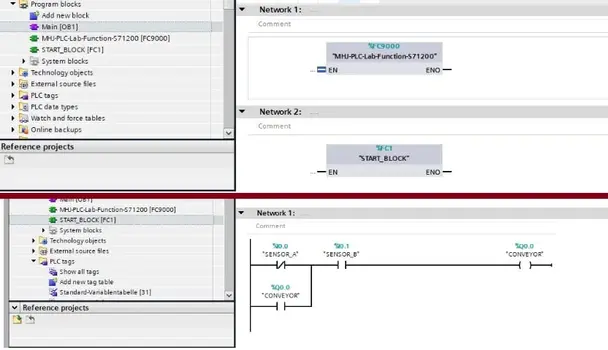
To set up the virtual PLC environment, you need to download the S7-PLCSIM V13-17 Factory I/O template and make it compatible with your TIA Portal version. After opening the project, update it and save it with a new name using 'Save as'. The template includes pre-prepared function blocks for Factory I/O; these blocks in the main OB1 should not be deleted.
To open PLC SIM, click on the controller and select the simulation icon. Then, set the PG/PC interface type to PN/IE, select PLCSIM, search for your device, and load it. Once the PLCSIM window opens, switch to Run mode.
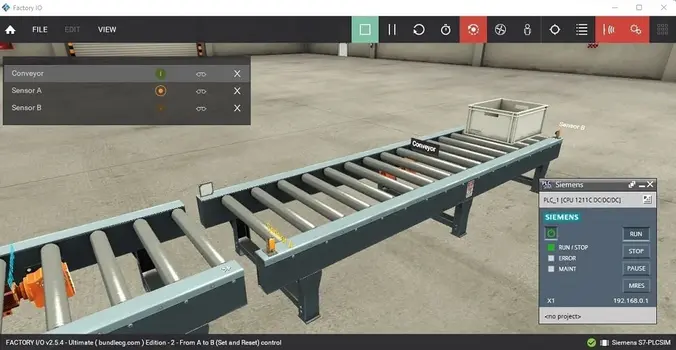
In Factory I/O, select a pre-made factory scene from the scenes section. For example, you can start with a simple example like "Point-to-Point Conveyor System". Select the Siemens S7-PLCSIM driver, connect, and verify the connection with the green checkmark.
Map the I/Os by dragging them onto the scene, and create PLC tags in TIA Portal with the same names as the tags in the Factory I/O driver. You can set up simple control logic with start/stop latching logic.
### Technical Specifications
- PLC Model: Siemens S7-1200
- TIA Portal Version: 17
- PLCSIM Template Version: V13-17
- Simulation Scene: Point-to-Point Conveyor System
- Sensors: Start and End Sensors
- Control Logic: Start/Stop Latching Logic
- Communication Type: PN/IE (Ethernet)
### Application and Troubleshooting
Compile your PLC program, download it to PLCSIM, and put it in RUN mode. In Factory I/O, press the 'Play' button to start the simulation. The conveyor will operate and stop based on sensor triggers.
If the project does not work as expected, check I/O address mappings, input-output mismatches, and the PLC's operating mode. TIA Portal's diagnostic tools and Factory I/O's visual indicators will help at this stage.
### Performance Considerations
Even without hardware in virtual PLC usage, the simulation's update rate, scan time, and program structure are important. The PLC's scan time and Factory I/O's update rate must be compatible; otherwise, delays or incorrect triggers may occur.
### Conclusion
Using a virtual Siemens S7-1200 PLC with Factory I/O provides the opportunity to develop and test automation logic before working with real machines. It eliminates the need for physical hardware, accelerating learning and increasing readiness for application.
You can explore various resources for more PLC brands and other simulation examples. Stay updated with developments and educational content in the world of automation.